


How Do I Set Up Email Filters for Promo Deals?
Quick Summary
Set up email filters for promotional deals by creating a rule in Gmail that matches your promo senders, then applying a label like Deals and choosing Skip the Inbox. Filters can match a sender address, subject words, or unsubscribe links, and they take about ten minutes to set up.
- Sender rules are the most reliable, since most shops send from one address.
- Check the "Also apply filter to matching conversations" box to sort older mail too.
- The Gmail mobile app cannot create filters, so request the desktop site on your phone.
- Run a cleanup search like category:promotions older_than:1y to clear years of old promo mail.
- Review your filters every three to six months and delete rules for stores you no longer shop at.
Table of Contents
- Why Promotional Emails Pile Up and How Filters Fix It
- How to Set Up Gmail Filters for Promotional Emails
- Create a Gmail Rule to Move Emails to a Folder
- Create a Gmail Filter for Multiple Email Addresses
- Outlook Rules for Marketing Emails
- Mobile Filters and Cleaning Up Old Promo Emails
- Booking Your Next Deal Without Missing It: Set Up Your Filters Today
- Frequently Asked Questions
Why Promotional Emails Pile Up and How Filters Fix It
Last Updated: November 2, 2026
Promo emails fill your inbox fast. A few shops send a daily deal, a few send weekly roundups, and before long your real messages get buried. Email filters fix this by sorting promotional mail for you, so deals land where you can check them on your schedule.
Here is the good news. Email filters for promotional deals take about ten minutes to set up. Once they run, they work in the background every day.
Most inbox clutter comes from a few patterns:
- Marketing senders use the same address or domain every time
- Promo subject lines repeat words like "sale," "deal," or "% off"
- Many deal emails include an unsubscribe link in the footer
A filter looks for these patterns and acts on them. It can label the message, skip the inbox, or move it to a folder. You stay in control because you choose the rules.
How to Set Up Gmail Filters for Promotional Emails
Gmail gives you two tools for this: filters, which act on incoming mail automatically, and tabs, which sort mail by type. Filters give you more control, so start there.
To begin, open the search bar at the top of Gmail and click the small settings icon on the right. Enter your criteria, then click "Create filter." Gmail will show you how many existing emails match, which helps you test your rule before it runs.
Here is a simple first filter:
- Sender: the address you want to catch, such as deals@example.com
- Action: Skip the Inbox (Archive it), then apply a label like "Deals"
- Check the box to apply the filter to matching conversations
Gmail applies the filter to new mail from that point on. You can check older mail with the "Also apply filter to matching conversations" box.
Defining Filter Criteria by Sender and Subject
Sender rules are the most reliable. Most shops send from one address, so a sender filter catches everything from that store.
Subject rules work well for mailers that use different senders. Try words like "flash sale," "today only," or "free shipping." Keep your keywords specific. A broad word like "sale" can catch personal messages too.
Combine both for better accuracy. Use "From" plus a subject word, so only sale emails from one sender match.
Using Search Operators for Precise Matches
Search operators let you build sharper filters. Type these into the filter box:
-
from:(@dreamdealshop.com OR @example.com)catches several senders at once -
subject:("% off" OR "deal of the day")matches exact phrases -
-from:meskips emails you sent yourself -
has:unsubscribefinds marketing mail, since most promo emails include an unsubscribe link
Quotation marks keep phrases together. Parentheses group terms. Use OR with capital letters.
Create a Gmail Rule to Move Emails to a Folder
Labels work like folders in Gmail. You can use a label to send promo emails to a dedicated folder, then check it once a day.
A simple setup looks like this:
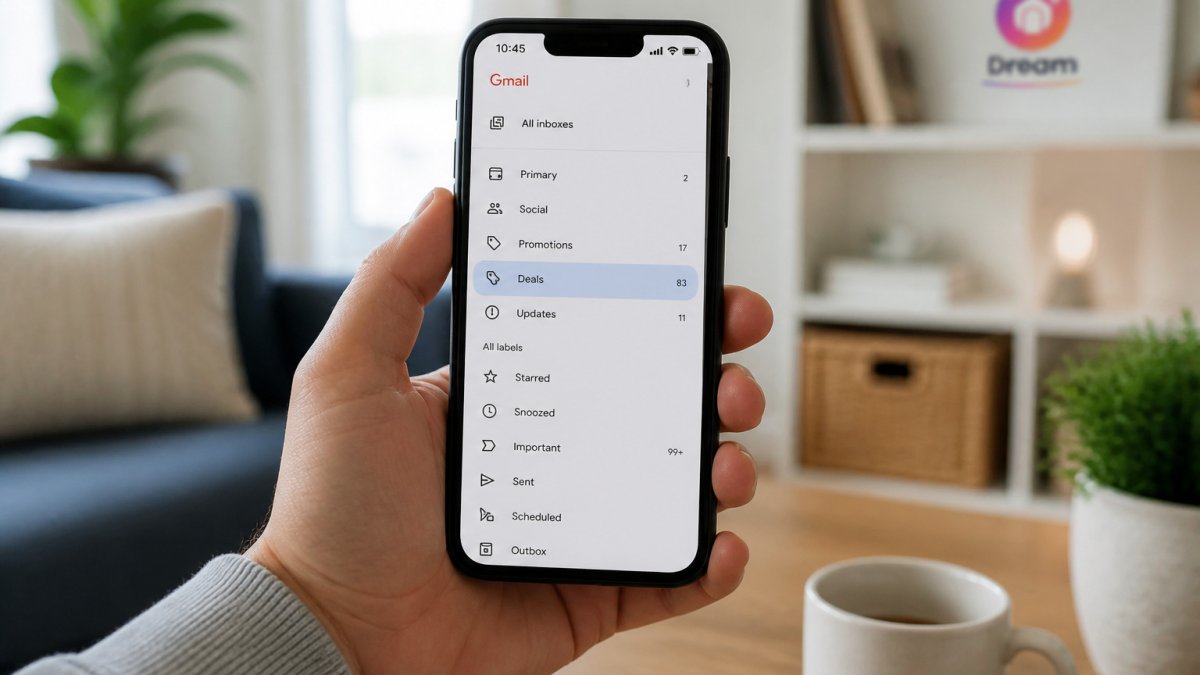
- Create a label called "Deals" in the left sidebar
- Build a filter that matches your promo senders
- Choose "Apply the label" and check "Skip the Inbox"
Your Deals label will fill with promo mail. Open it when you want to browse, and your main inbox stays clean.
Create a Gmail Filter for Multiple Email Addresses
Many people sign up with more than one address. A filter can catch mail sent to all of them.
Gmail filters check the "To" field, so you can add rules for each address you use. Enter to:(you@gmail.com OR you@workmail.com) along with your promo criteria. Gmail matches whichever address the email was sent to.
If you forward mail from other accounts, check the forwarding settings first. Filters run on the address that receives the message, so a forwarded email may be treated differently.
Outlook Rules for Marketing Emails
Outlook uses rules instead of filters, but the idea is the same. In Outlook on the web, open Settings, search for "Rules," and select "Add new rule."
Set your conditions first:
- From: the sender's address
- Subject includes: a promo word such as "sale"
Then choose an action, such as "Move to" a folder you create called "Deals." Click save. Outlook will sort future mail that matches.
Outlook also has a "Junk" setting, but it can catch real deals by mistake. Check your Junk folder for a few days after you set it up.
Mobile Filters and Cleaning Up Old Promo Emails
Most filter guides are written for desktop and quietly ignore the two things readers actually struggle with: managing filters from a phone, and dealing with years of promo mail that already piled up. This section covers both.
Setting Up and Managing Filters on Mobile
The Gmail mobile app cannot create filters. That is a platform limitation, not a bug. The workaround is to open Gmail in your phone's browser, request the desktop site, and use the full web interface. On iOS Safari, tap the "aA" icon in the address bar and choose "Request Desktop Website." On Android Chrome, open the three-dot menu and check "Desktop site." The filter creation flow is identical to desktop once the desktop view loads.
Once a filter exists, it runs on Google's servers, not on your device. That means a filter created on a laptop applies to mail arriving on your phone, your tablet, and any third-party mail app that syncs the same account. Your labels appear in the Gmail app automatically, and you can move the Deals label to the top of the sidebar by long-pressing it and dragging.
Watch out: third-party mail apps such as Apple Mail or Outlook mobile may not honor Gmail's "Skip the Inbox" action the same way. If promo mail still shows in a third-party app's inbox, check whether that app is syncing the All Mail folder rather than the Inbox.
Bulk-Cleaning Years of Historical Promo Mail
Filters only act on future mail unless you check "Also apply filter to matching conversations" during setup. For mail that is already sitting in your inbox, run a search first, review the results, then act in bulk.
Useful cleanup searches:
-
category:promotions older_than:1yfinds promo mail older than a year -
has:unsubscribe older_than:6mcatches marketing mail from the last six months and earlier -
from:(@store.com) larger:500Ksurfaces image-heavy promo mail from one retailer -
label:Deals is:unread older_than:30dfinds deal mail you never opened
Select all results with the checkbox at the top of the list, then choose Archive or Delete. Gmail caps bulk selection at one page of results at a time, so repeat the search after each pass until it returns nothing.
Auditing Your Filters
Filters quietly break. Senders change addresses, retailers rebrand, and a rule that worked last year may now match nothing or match too much. Set a recurring reminder every three to six months to open Gmail Settings, go to Filters and Blocked Addresses, and review each rule. Delete filters for stores you no longer shop at, and tighten any rule that is catching personal mail.
A simple audit habit: search label:Deals older_than:90d is:unread. If the results are full of mail you never open, that sender is a candidate for deletion rather than filtering.
Here is a quick reference for the cleanup searches covered in this section:
| Search | What it finds | Next step |
|---|---|---|
| category:promotions older_than:1y | Promo mail older than a year | Select all, then Archive or Delete |
| has:unsubscribe older_than:6m | Marketing mail from the last six months and earlier | Review, then bulk-clean |
| from:(@store.com) larger:500K | Image-heavy promo mail from one retailer | Check before deleting |
| label:Deals is:unread older_than:30d | Deal mail you never opened | Repeat search after each pass |
Booking Your Next Deal Without Missing It: Set Up Your Filters Today
Set up one filter for your favorite shop today, then add more as you find new senders. Start small, check your label once a day, and adjust the rules as needed.
Your inbox will stay calmer, and you'll see the deals you care about. First-time shoppers at Dream Deal Shop get 10% off their first order, so you can try our daily drops and see how they fit into your routine. If you're shopping for a specific category, our Tech Accessories and Home Essentials collections are good places to start. Shop today's drop at dreamdealshop.com before the items sell out.
Frequently Asked Questions
How do I filter promotional emails in Gmail?
Open Gmail, click the search options arrow, and enter the sender or keywords that match the promotional emails you want to catch. Click Create filter, then choose Apply the label or Skip the Inbox. Gmail also has a built-in Promotions tab that sorts many marketing messages automatically, so check that tab first. Once your filter is saved, new matching emails will follow the rule you set without any manual sorting on your part.
Can I create a Gmail filter for multiple email addresses?
Yes. In the search options, enter several senders separated by OR, such as from:(store1@example.com OR store2@example.com). Gmail treats the parentheses as a group, so one filter covers every address in the list. You can add subject keywords the same way. Test the search first to confirm the results show only the emails you expect, then create the filter from that search.
Why isn't Gmail filtering promotional emails?
The most common cause is a search that is too narrow, such as a single sender address when the store sends from several. Check that the filter criteria match the exact sender and that the filter applies to new mail only unless you tick the option for existing matches. Filters also do not run on emails that were already in your inbox before you created them. Recheck the rule under Settings, then Filters and Blocked Addresses.
How do I filter promotional emails in Outlook?
In Outlook on the web, go to Settings, then Mail, then Rules, and select Add new rule. Name the rule, add a condition such as From or Subject contains, then choose an action like Move to a folder. Create a Deals folder first so the matching emails have a clear destination. Saved rules run on incoming mail, so new promotional emails will land in that folder automatically.
