


Automate Lighting Without a Hub: A Simple Setup Guide
Last Updated: November 16, 2026
Quick Summary
To automate lighting without a hub, use Wi-Fi smart bulbs or smart plugs that connect directly to your router and the manufacturer's app, skipping any bridge box. You need a router, the bulbs or plugs, the app, and your phone on the same network. Pair on 2.4 GHz Wi-Fi, then set schedules in the app.
- Wi-Fi bulbs allow remote control and voice assistants, while Bluetooth bulbs only work near your phone.
- Most failed pairings happen because your phone is on 5 GHz instead of 2.4 GHz during setup.
- Pairing a Wi-Fi smart bulb takes about five minutes if you follow the steps in order.
- A smart plug makes any existing lamp smart without new bulbs or wiring.
- During an internet outage, scheduled routines usually stop but lights still work manually.
Table of Contents
- Hub-Free Lighting: What You Actually Need to Get Started
- Smart Bulbs That Don't Need a Hub: Wi-Fi, Bluetooth and What to Check
- Step-by-Step: Pairing a Bulb and Controlling It From Your Phone
- How to Make Lights Turn On Automatically With Schedules and Routines
- Smart Switches vs Smart Bulbs: Which Fits Your Rooms
- How to Control Lights Away From Home (and What Happens in an Outage)
- Reliability, Privacy and the Costs Nobody Mentions
- Pick Your First Smart Lighting Kit From Today's Drop
- Frequently Asked Questions
Hub-Free Lighting: What You Actually Need to Get Started
You can automate lighting without a hub, and it takes less gear than most guides suggest.
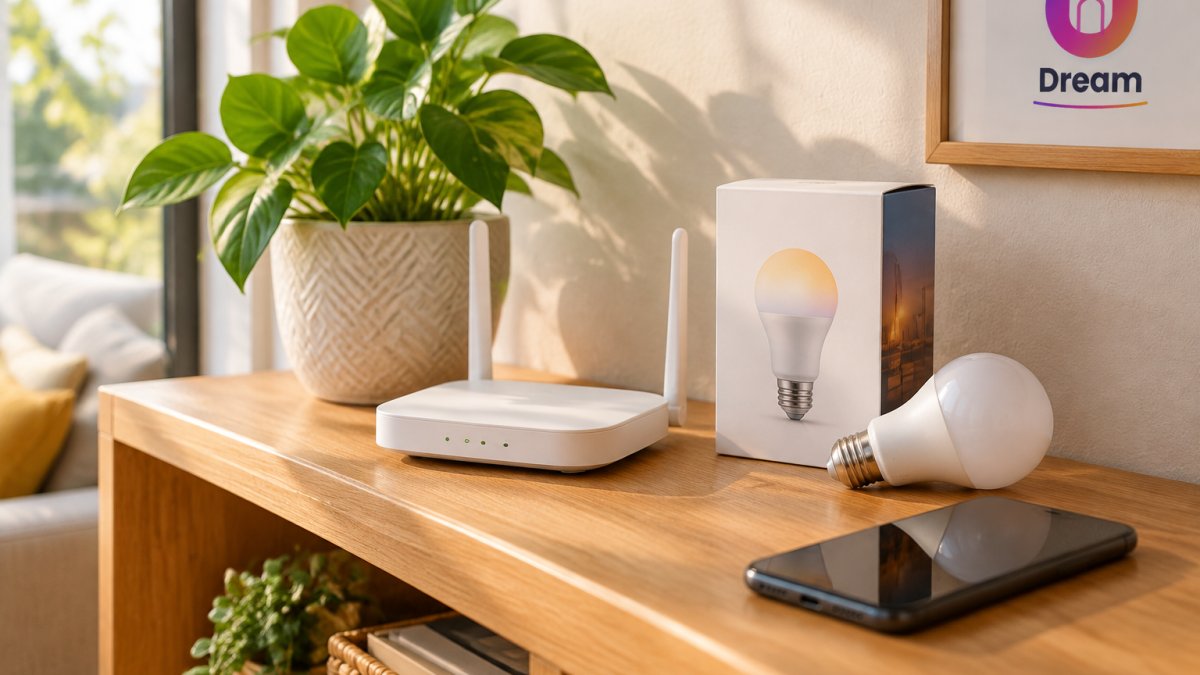
Hub-free lighting means your bulbs or plugs talk directly to your home Wi-Fi network and your phone, with no separate bridge box in between.
Here is what you actually need:
- A Wi-Fi router in your home
- One or more Wi-Fi smart bulbs or smart plugs
- The manufacturer's mobile app
- Your phone connected to the same network as the bulbs
That's it. No bridge, no hub, no control box.
But here's where people get confused.
For now, know this: hub-free is the simplest starting point for renters, small apartments, and anyone who wants lights working this weekend, not next month.
If you're setting up in a tight space, our guide to practical home gadgets for small apartments covers other gear that fits without clutter.
Smart Bulbs That Don't Need a Hub: Wi-Fi, Bluetooth and What to Check
Smart bulbs that don't need a hub come in two main types, and they behave very differently. Wi-Fi bulbs connect straight to your router. Bluetooth bulbs connect straight to your phone. Both skip the hub, but only one lets you control lights when you're away from home.
Here's the breakdown:
- Wi-Fi bulbs: Connect to your router, work with voice assistants, support remote control and schedules. Best for most homes.
- Bluetooth bulbs: Connect only to your phone within range. Cheaper, but no remote control and no voice assistant unless you add a bridge.
- Wi-Fi smart plugs: Not bulbs at all, but they make any lamp smart. Great for floor lamps and older fixtures.
What to check before buying:
- Does it list 2.4 GHz Wi-Fi support?
- Does the app support schedules and timers?
- Does it work with your voice assistant of choice?
- Are firmware updates handled in the app?
The 2.4 GHz Detail That Trips People Up
Most Wi-Fi smart bulbs only connect to a 2.4 GHz network, not the 5 GHz band your router also broadcasts. If your phone is on 5 GHz during setup, the bulb may never appear in the app.
The fix is simple. During pairing, switch your phone to the 2.4 GHz network, or temporarily split your router's bands. A common mistake is blaming the bulb when the phone is simply on the wrong band.
Step-by-Step: Pairing a Bulb and Controlling It From Your Phone
Pairing a Wi-Fi smart bulb takes about five minutes if you follow the right order. The biggest cause of failed setups is skipping a step, not a faulty bulb. Here is the sequence that works across most major Wi-Fi bulb brands, plus the fixes for when it does not.
- Screw in the bulb and switch the power on. Leave it on for at least 30 seconds so it boots fully.
- Install the manufacturer's app and create an account. Use an email you check, since password resets and firmware notices go there.
- Connect your phone to your 2.4 GHz Wi-Fi network. This is the step most people skip. If your router broadcasts one combined network name, move away from the router until your phone drops to 2.4 GHz, or split the bands in your router settings.
- Put the bulb in pairing mode. The method varies by brand: some bulbs flash quickly after three off-on cycles at the wall switch, others need a long press on a button, and some pair automatically the first time they are powered on. Check the app's add-device screen for the exact pattern.
- Add the device in the app and enter your Wi-Fi password. Type it manually rather than pasting, since some apps strip trailing spaces.
- Name the bulb something useful, like "Desk Lamp" not "Bulb 1." You will thank yourself when you have eight of them.
- Test on/off, dimming, and brightness from the app. Then test the wall switch to confirm the bulb returns to its last state when power is restored.
If the bulb won't pair, work through these in order:
- Phone on 2.4 GHz, not 5 GHz. This resolves the majority of failed pairings.
- Password typed correctly, including capitals and special characters.
- Bulb within range of the router. A bulb in a far corner may see a weak signal even if your phone shows full bars.
- App permissions for location and local network enabled. Many apps need location permission to scan for nearby devices during setup, even though they do not need it afterward.
- Router security set to WPA2 or WPA2/WPA3 mixed. Some older bulbs fail on WPA3-only networks.
- MAC filtering or device isolation turned off in your router settings, since these block new devices from joining.
Watch out: if you have a mesh Wi-Fi system, the bulb may pair to one node and then drop when your phone roams to another.
Once your lights are running from your phone, the next annoyance is cable clutter. Our guide on how to hide cables in your home office setup helps tidy the desk area around your new setup.
How to Make Lights Turn On Automatically With Schedules and Routines
To make lights turn on automatically, you use the app's schedule or routine feature. You pick a time, choose which bulbs turn on, and set the brightness. The app handles the rest, every day.
Start with these three routines:
- Wake-up: Lights fade in at a low brightness at your usual wake time.
- Evening: Living room lamps switch on around sunset.
- Away: Lights turn on and off at varied times while you're out.
A few practical tips:
- Set brightness low for morning routines. Full brightness at 6 a.m. is jarring.
- Use "sunset" triggers instead of fixed times. Your schedule stays useful as the seasons shift.
- Group bulbs by room so one tap controls the whole space.
If you work at a desk all day, pairing routines with a good task light matters. Our piece on smart desk lamps for eye strain explains what actually helps.
Smart Switches vs Smart Bulbs: Which Fits Your Rooms
Smart switches and smart bulbs solve the same problem from opposite ends. Bulbs are easy and renter-friendly. Switches are permanent and control every bulb on the circuit. Pick based on your rooms, not on which one sounds cooler.
| Feature | Smart Bulb | Smart Switch |
|---|---|---|
| Installation | Screw in, no wiring | Needs wiring, often an electrician |
| Renter friendly | Yes | Usually no |
| Controls multiple bulbs | One bulb at a time | Whole circuit |
| Dimming | Built in | Depends on switch and bulbs |
| Best for | Lamps, renters, single rooms | Whole-room control, permanent homes |
| Works if switch is off | No | Yes |
A smart bulb dies the moment someone flips the wall switch off. That's the single biggest complaint we hear. Smart switches avoid that problem because they replace the switch itself.
When a Smart Plug Is the Easier Answer
A smart plug is the easiest answer for lamps you already own. Plug the lamp into it, connect the plug to your Wi-Fi, and now that lamp is smart. No new bulb, no wiring, no fuss.
Use smart plugs for:
- Floor lamps and older fixtures
- Holiday or accent lighting
- Anything with a physical on/off switch
The catch is dimming. Most smart plugs only do on and off, so if you want brightness control, a smart bulb is the better pick.
How to Control Lights Away From Home (and What Happens in an Outage)
You can control lights away from home as long as your bulbs connect through the manufacturer's cloud.
This is where the "no hub" versus "no cloud" distinction matters.
- No hub: The bulb talks directly to your router. This is what hub-free means.
- No internet: The bulb still works from the wall switch and often from the app on the same network, but remote control stops.
- No cloud: Local control only. Some systems support this, but most budget Wi-Fi bulbs do not.
During an internet outage, your scheduled routines usually stop. Your lights still work manually. When the connection returns, most apps resync on their own.
For security, use a strong, unique password on your Wi-Fi network and enable two-factor authentication in the bulb app if it's offered. Keep firmware updated, since manufacturers patch vulnerabilities through app updates.
Reliability, Privacy and the Costs Nobody Mentions
Reliability is the part most guides skip. A single Wi-Fi bulb is fine.
Watch out: cheap Wi-Fi bulbs sometimes drop off the network and need re-pairing after a router reboot.
On privacy, read what the app collects. Some apps ask for location access, which is usually needed for setup but not for daily use.
Vendor support is the risk nobody plans for.
Costs beyond the bulb itself:
- A better router or a mesh node if you are adding many devices
- Smart plugs for lamps you do not want to re-bulb
- Replacement bulbs over time, since smart bulbs do eventually fail
- A subscription, in the rare cases where a brand gates advanced schedules or cloud recording behind one
If you are weighing value across accessories, our roundup of tech accessories for productivity covers what is worth the spend.
Pick Your First Smart Lighting Kit From Today's Drop
Start small. One Wi-Fi bulb and one smart plug are an easy way to learn the basics. Get the 2.4 GHz pairing right, set one schedule, and build from there.
At Dream Deal Shop, we offer home essentials and tech accessories at real discounts, with new hand-picked drops added regularly. First-time customers get 10% off their first order.
Ready to make your place smarter without a hub? Browse today's drop, grab a starter bulb or plug, and set your first routine tonight.
Frequently Asked Questions
Which smart lights don't require a hub?
Wi-Fi bulbs connect straight to your router, so they need no bridge or hub. Bluetooth bulbs also skip the hub but only work within range of your phone. Smart plugs and Wi-Fi smart switches follow the same direct-connection logic. Check the box for Wi-Fi or Bluetooth on the label rather than Zigbee or Z-Wave, which usually need a bridge. A Wi-Fi bulb plus your existing router is enough to automate lighting in most rooms.
Can I control smart lights away from home without a hub?
Yes, as long as the bulb connects through your home Wi-Fi and the maker's app supports remote access. You open the app on mobile data and the command travels over the internet to your router, then to the bulb. Bluetooth-only bulbs cannot do this because they need your phone nearby. Test remote control before you rely on it, and keep the bulb's firmware updated so the connection stays stable.
Can smart lights work without an internet connection?
Partly. A Wi-Fi bulb still turns on and off at the physical switch, and schedules stored on the device usually keep running. What stops is app control from outside the home and voice commands, since those route through the cloud. Bluetooth bulbs keep working near your phone. If you want lights that survive an outage of your router, look for models that store routines locally and pair them with a smart switch.
Are smart bulbs or smart switches better for hub-free lighting?
Smart bulbs suit lamps and rooms where you want colour, dimming or per-light control, and they take minutes to fit. Smart switches keep working when someone flips the wall switch and control every bulb on that circuit, but they need wiring work. A common setup mixes both: switches for ceiling fixtures, bulbs for lamps. Add a smart plug for any lamp you want on a timer without changing the bulb.
